
There are two common ways to record the cameras on a property. One is a standalone network video recorder (NVR). The other is UniFi Protect, which runs on a UniFi console or a UniFi recorder. This is a plain comparison, with no prices.
We work primarily in UniFi, and we also service and troubleshoot other systems, so we see both setups. Where we can check a fact against Ubiquiti’s documentation, we say so. Where it depends on the maker of a standalone recorder, we frame it as a question to ask instead of a claim.
What a standalone NVR is
A standalone NVR takes the camera streams and writes them to disks. Many are built to do only that, with their own app and their own login. Details vary a lot by maker and model, so before you decide, find out:
- Which app and login you use to watch live video and playback.
- Where recordings are stored, and how long they are kept.
- Whether any remote viewing or cloud features carry a fee.
- Whether the cameras are powered by the recorder’s own ports or by a separate PoE switch.
- Whether it shares anything with your Wi-Fi or door system, or sits on its own.
None of this makes a standalone recorder wrong. A working system you understand is fine. These are just the questions that tell you how much of the system lives in one place.
What UniFi Protect is
Ubiquiti describes UniFi Protect as a camera surveillance system that combines on-premise video storage with remote management, without any licensing fees. It is one of several applications in the UniFi platform, alongside UniFi Network (routing, switching and Wi-Fi) and UniFi Access (doors and gates).
To set it up, Ubiquiti lists three requirements: a UniFi console that supports Protect, UniFi cameras (or ONVIF-compatible third-party cameras), and PoE switches to power the cameras. Each camera plugs into a PoE switch for power and network, then is adopted through the Protect mobile app or through Site Manager at unifi.ui.com, both with a UI account.
One setup note from Ubiquiti: if you use a Cloud Key or NVR and your network has multiple VLANs, the cameras need to be on the same VLAN as that Cloud Key or NVR.
Where the video lives
With Protect, recordings are stored on the console or recorder on your property. Retention is managed in Storage Manager. Ubiquiti’s Enhanced Retention (Protect 5.1 or later) keeps recent footage at full quality and automatically steps older recordings down to low quality to save space. Clips you want to keep can be flagged, exported or archived.
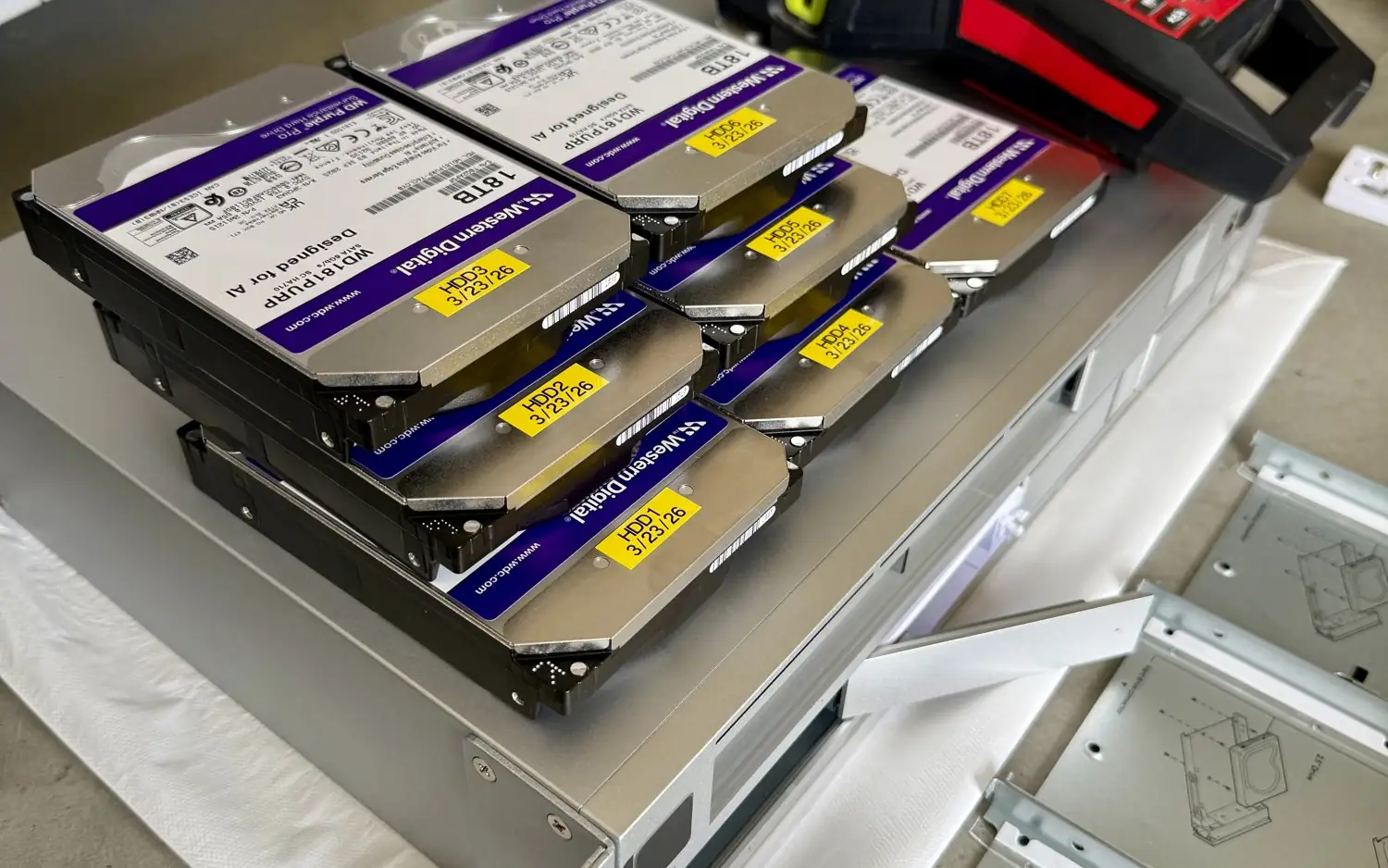
On a UniFi NVR, drives are grouped with RAID. Ubiquiti’s guidance, in short:
- Basic Protection needs at least two drives (RAID 1 with two, RAID 5 with three or more) and protects against one drive failing.
- Use drives of the same size. Mismatched drives limit retention to the smallest and slowest one.
- Install all drives before setup. Adding or replacing drives later means rebuilding the array, which can take several hours.
- If retention matters most, choose the largest drives your budget allows.
- Drive health is monitored, and you get alerts about at-risk or failed drives.
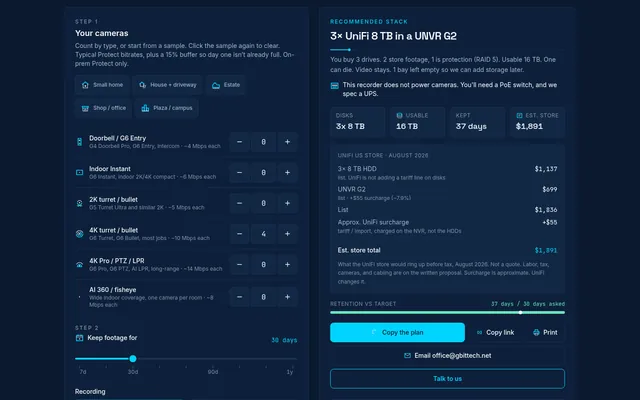
Part of the raw capacity goes to redundancy, so plan retention from usable space, not the drive labels. Our Storage planner does that arithmetic for you.
Sizing the recorder
Protect shows an estimate of how many cameras your console can effectively manage and warns you when you pass the recommended limit. Ubiquiti calls these estimates, not hard limits, and says capacity is affected by the number of active users, the number of Viewports, and the health of the storage disks. Its general guide for a few common devices:
| Device | HD cameras | 2K cameras | 4K cameras |
|---|---|---|---|
| UNVR | 60 | 30 | 18 |
| UNVR Pro | 70 | 35 | 24 |
| Dream Machine Pro Max | 50 | 25 | 15 |
Ubiquiti also offers a Resource Calculator for choosing a console. We confirm the numbers for the model you are actually buying before we quote.
Side by side
| Standalone NVR | UniFi Protect | |
|---|---|---|
| App | Varies by maker, often its own | The UniFi platform, next to Network and Access |
| Storage | Varies, ask where video is kept | On your console or recorder, with RAID on UniFi NVRs |
| Licensing | Varies, ask about remote and cloud features | Ubiquiti states no licensing fees |
| Camera power | Varies, some recorders have PoE ports | PoE switches, per Ubiquiti’s setup guide |
| Third-party cameras | Varies | ONVIF-compatible third-party cameras are supported |
When a standalone recorder still makes sense
If the recorder you have works, you know how to use it, and you have no plans to add Wi-Fi or door control, replacing it is not urgent. If you do want one platform, Protect can use ONVIF-compatible third-party cameras, so some existing cameras may be reusable. We check specific cameras before promising anything.
How we install it
Cameras home-run on CAT6 to a PoE switch, labeled at both ends and tested. If cable already in the walls tests clean, we reuse it. Recorder, gateway and switch go in the same labeled rack so the next service call is easy. See our security camera installation page for the details.
FAQ
Is there a monthly fee for UniFi Protect?
Ubiquiti describes Protect as available without licensing fees. Check Ubiquiti’s current terms for any optional add-ons before you buy.
Can I watch my cameras away from home?
Ubiquiti describes Protect as combining on-premise video storage with remote management. Its setup guide uses the Protect mobile app and Site Manager (unifi.ui.com), both signed in with a UI account. We set up and test remote viewing with you at handover.
What happens if a drive fails?
On a UniFi NVR with RAID, one failed drive does not lose the recordings. Replace it with a drive of equal or greater size and follow the prompts to rebuild.
Can the recorder keep video forever?
No recorder keeps everything forever. Retention depends on drive size, camera count, resolution and recording settings. Plan it from usable storage.
Get a plan
Request an estimate. Sketch your lot in Sight for a ballpark, or contact us and we will start from what you already have.