
Starlink failover on UniFi means your main internet stays primary and a satellite link on WAN2 takes over only when it drops. On a UniFi gateway, that is a setting, not a rebuild. Remote access reconnects over the backup link once failover completes.
This post explains how we set up Starlink failover as a second WAN on UniFi, what it protects, and where people expect too much. If you want the dish mounting and the full service, start with our Starlink installation page. This note is the how-and-why behind the network side.
What failover actually protects
Cameras record locally on the console, so recording does not need the internet. In our experience, gate and door control on the local network also keeps working without it. What the internet gives you is remote access: live view on your phone and remote management of the system.
So a second WAN protects the parts of your system that leave the building:
- Remote access to your cameras and console, reconnecting over the backup link once failover completes.
- Video calls and work from home.
It does not make the local system faster, and it does not replace power backup. If the power is out, our practice is a UPS on the gateway, switch and Starlink, which keeps the second WAN alive.
The layout
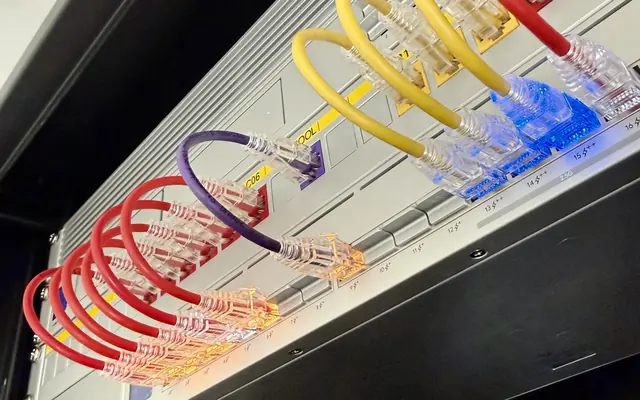
The core idea is simple. The wired ISP, such as cable or fiber, connects to WAN1 on the gateway. Starlink connects to WAN2. The gateway watches both and routes traffic to the highest-priority link that is online.
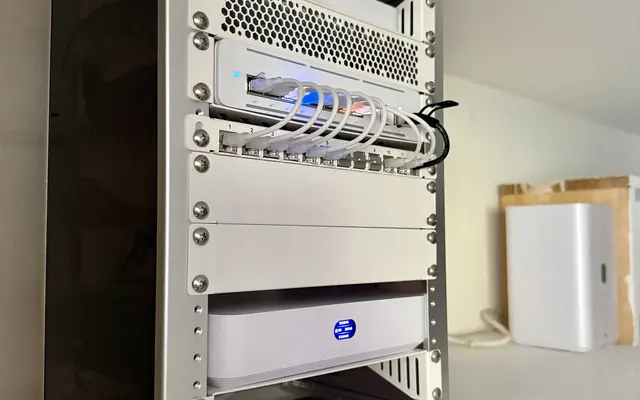
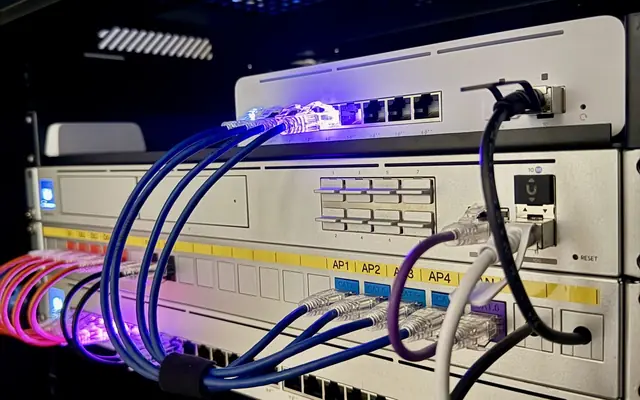
We have set this up with a cable ISP on the primary and Starlink as the backup, on a Cloud Gateway Fiber. The Cloud Gateway Fiber and the Dream Machine Pro Max both support a second WAN (the Fiber up to 6 WANs, the Pro Max up to 8), and the exact port setup differs by model. We check the current models and port options at store.ui.com before choosing hardware.
Bypass mode
The Starlink router should be in bypass mode when a UniFi gateway is doing the routing. Bypass mode avoids double NAT and gives the gateway full control of routing and firewalling.
Bypass turns off the Starlink router’s Wi-Fi and routing, and exiting it needs a factory reset. Starlink also says some app features may not work with a third-party router. How you get there depends on the kit:
- Router 3: enable bypass in the Starlink app and plug into the router’s Ethernet port.
- Gen 2 router: needs an Ethernet adapter.
- Starlink Enterprise and Performance kits: no bypass. Just connect the third-party router.
We confirm which kit you have before we run cable.
Setting the failover behavior
In UniFi Network, under Settings > Internet, each WAN can be set to failover or load balancing. Failover is priority based, and it is what most homes and small businesses want. WAN1 handles everything, and WAN2 stays idle until WAN1 is down. When WAN1 comes back, traffic returns to it.
Load balancing splits new connections across both links by weights, and a session stays on one WAN. It is possible, but depending on your Starlink plan (priority plans have data allotments after which speeds drop), failover is our practice as the sensible default.
Failover is not instant. The gateway marks a link down when two of its three health checks fail, so in our experience a video call may drop and reconnect. That is normal, and it is much better than an hour of no internet.
Starlink, CGNAT and inbound access
Starlink uses CGNAT by default, so inbound port forwards won’t work. UniFi remote access and Teleport are outbound and still work. A public IPv4 address is optional and only available on some plans. IPv6 is native.
The physical side
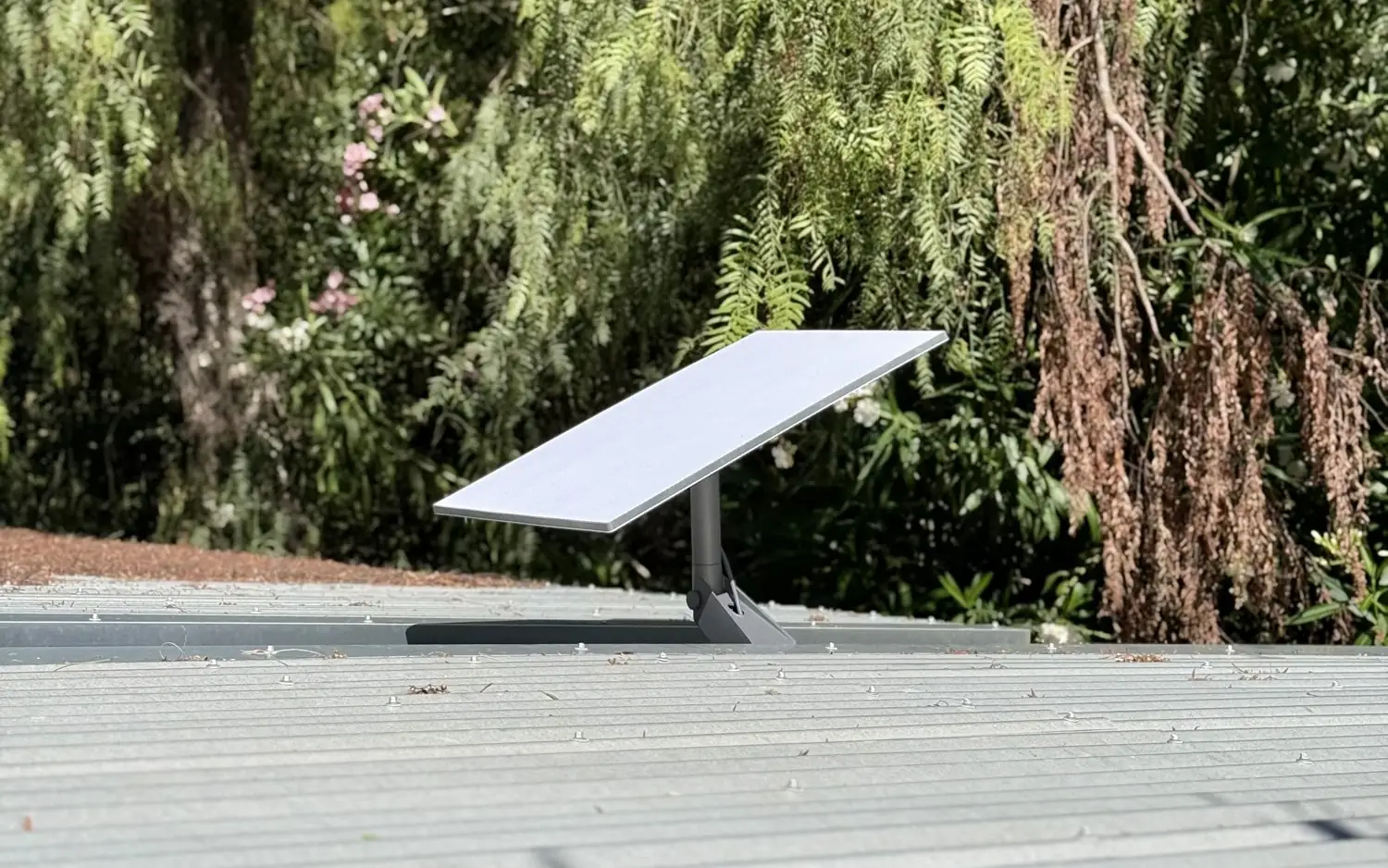
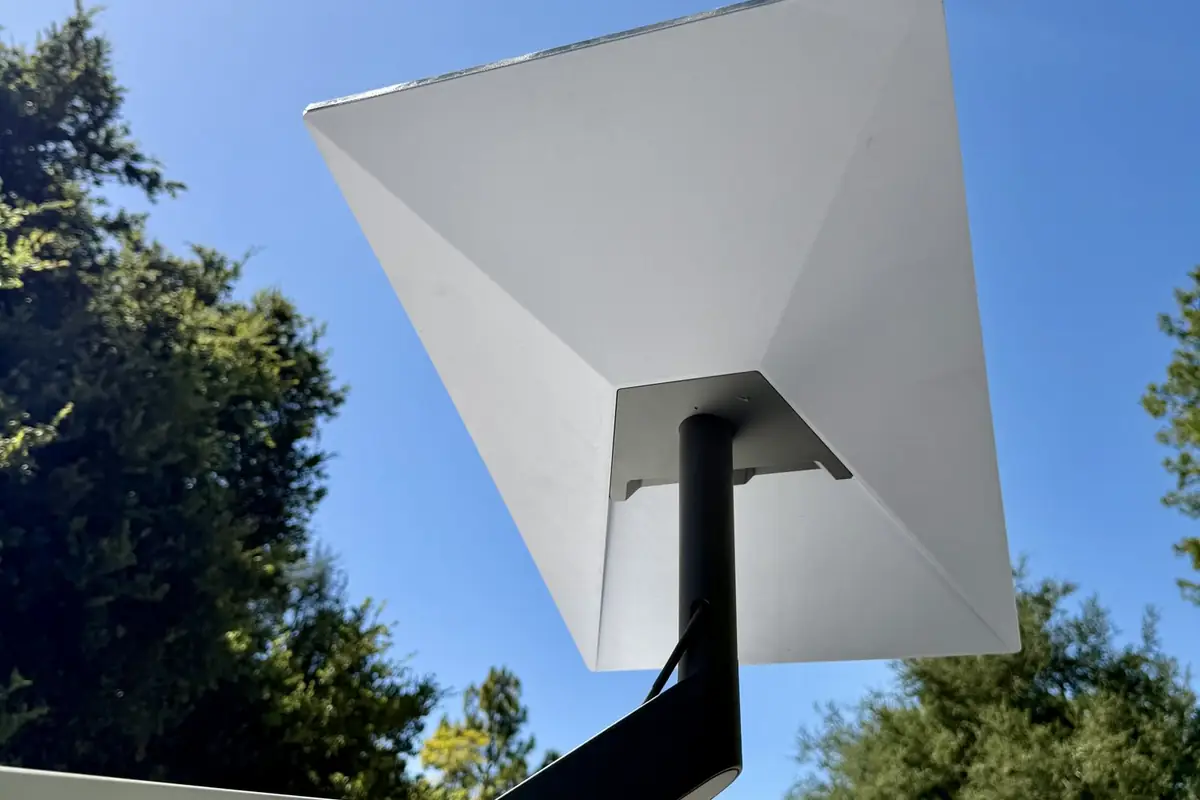
Starlink is a physical install. The dish needs a clear view of the sky, a secure mount and a cable route that does not turn into a leak or a trip hazard. When we plan one, a typical route is a dedicated mast or sleeve from the roof down through the crawlspace or attic to the equipment closet, so the dish cable has a clean, protected path. We plan it with the same care as any other low-voltage cable.
Indoors, the wired leg from the Starlink connection to the gateway is a data drop, so we run Cat6A and label it at both ends. The dish, power supply and any Ethernet adapter need power and a dry, ventilated spot. Our structured cabling service covers the pathway work.
Who buys the Starlink kit
The Starlink kit and service are bought and activated by you, on your own account. We mount, route and connect. That keeps the account in your name, and it means plan changes and billing never go through us.
Cellular backup as another path
For a site that cannot go down, a second path is not the ceiling. UniFi LTE backup connects to a LAN port and is managed from the same console. Our Starlink page covers those options. Which one fits depends on signal at the address and carrier support, so we check on site.
What we test before we leave
A failover you never tested is a hope, not a plan. Before handover we:
- Confirm both links show healthy in UniFi.
- Unplug WAN1 and watch the gateway move to Starlink.
- Check that remote access reconnects over the backup link once failover completes.
- Plug WAN1 back in and confirm traffic returns.
- Show you how to see which link is active. If you want an alert when a WAN goes offline, Alarm Manager can send one.
Where it fits in a bigger network
A second WAN is a small addition when the rest of the network is already UniFi. If you manage more than one location, our note on multi-site management with UniFi shows how sites are monitored together. For business-side planning, see UniFi networks for business connectivity, and our Wi-Fi installation service covers the rest of the network.
We work primarily in UniFi, and we also service and troubleshoot other systems, including router setups we did not install.
FAQ
Do I need Starlink if my ISP is reliable?
Not necessarily. It is for the day the line goes down and you still need remote access or work.
Will cameras stop recording during an outage?
No. Recording stays local on the console. Remote access is what drops, and it reconnects over the backup link once failover completes.
Is failover automatic?
Yes, once configured. The gateway switches on its own and returns to the primary.
Ready to plan it
Request an estimate. If cameras are part of what needs to stay online, sketch the lot in Sight for a ballpark, or contact us to talk through the network.